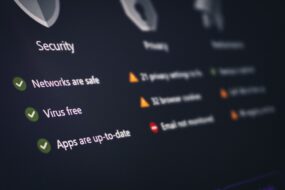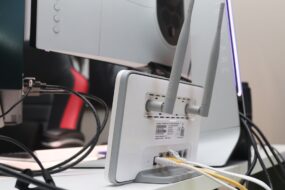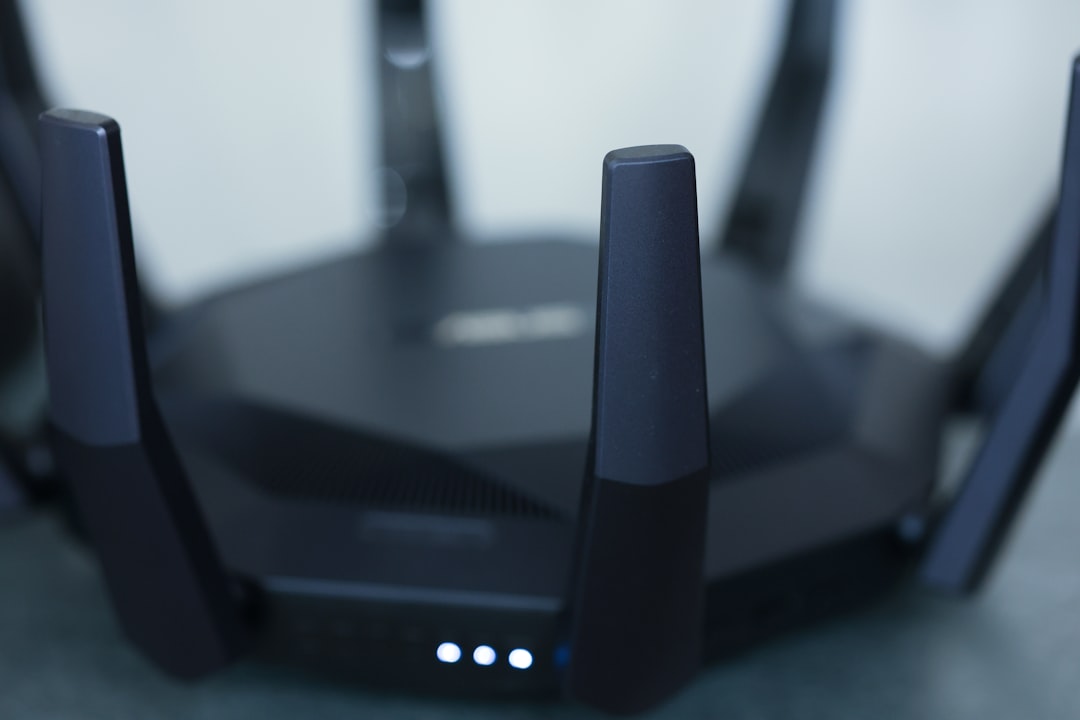
Picture this: it’s a quiet evening at home, and you’re streaming your favorite show when suddenly, the connection drops. You check your router, and it’s still blinking away, but you can’t seem to connect. Frustrating, right? Now, imagine if it’s not just connectivity issues you’re dealing with, but someone else hijacking your network. That’s a reality for many people who don’t know how to secure their home Wi-Fi network.
Getting your network hacked isn’t just an inconvenience; it can lead to unexpected costs or even identity theft. Therefore, understanding effective home network security requires more than just knowing how to plug in a router. Let’s explore the ins and outs of Wi-Fi security tips and what you can do to protect Wi-Fi access in your home.
Why Your Home Wi-Fi Network Needs Protection
When most people set up their Wi-Fi, they’re mainly focused on speed and coverage. But neglecting how to secure your home Wi-Fi network can have serious consequences. You’re not just sharing your internet; you’re sharing access to your personal data.
According to a recent study, nearly 40% of people don’t change their default router settings. This is like leaving your front door wide open and expecting no one to walk in. Here’s why it matters:
- Unauthorized Access: Once someone accesses your network, they can see and possibly steal sensitive information.
- Slower Internet: Additional users can slow down your connection and affect your streaming and browsing experience.
- Increased Costs: If your connection is exploited, you could face charges for excessive data usage.
Change the Default Settings
This may seem simple, but you’d be surprised how many people forget this crucial first step. Routers usually come with default usernames and passwords that are widely known and can be easily accessed by hackers. Changing these settings is one of the most effective ways to secure your home Wi-Fi network.
Steps to Change Your Settings
- Connect to your network via a web browser.
- Type the router’s IP address, usually found on the back of the device or in the manual.
- Log in with the default credentials if you haven’t changed them yet.
- Navigate to the administration settings.
- Change the username and password to something more secure.
In my experience, a unique combination of letters, numbers, and special characters works best. Keep it long and don’t use easily guessed information!
Enable Strong Encryption
Encryption is your best friend when it comes to securing your Wi-Fi traffic. WPA2 (Wi-Fi Protected Access II) is the standard folks should be using. If you’re still using WEP or no encryption, it’s time to make a change.
Here’s why encryption matters:
- It cloaks your data during transmission, making it difficult for third parties to intercept.
- Most modern devices automatically connect to the strongest encryption available, enhancing your security.
To enable WPA2, go to your router’s settings and look for the wireless security option. Opt for WPA2 and set a strong password.
Hide Your SSID
Your SSID (Service Set Identifier) is the public name of your Wi-Fi network. Keeping it visible might seem harmless, but hiding it adds an extra layer of privacy that can help you secure your home Wi-Fi network more effectively.
When you hide your SSID:
- It makes your network less recognizable to potential intruders.
- You’ll have to manually connect devices by entering the SSID and password, making it harder for unauthorized users to get in.
How to Hide Your SSID
- Access your router settings.
- Look for the option that says “SSID Broadcast” or “Visibility Status.”
- Select the option to disable the broadcast.
Remember, if you rely on your devices to auto-connect, you may need to re-enter details for each new device you want to add.
Regularly Update Your Router Firmware
Software updates may seem tedious, but they’re essential for guaranteeing a secure home network. Manufacturers often release firmware updates to fix vulnerabilities that hackers might exploit.
Set a reminder to check for updates at least once a month. Most routers have an option to enable automatic updates. This way, you won’t have to remember it!
Use a Guest Network
If you frequently have visitors who need to access Wi-Fi, consider creating a guest network. This keeps your primary network secure while providing access for guests.
Most routers come equipped with a guest network feature that you can easily enable. This allows you to:
- Control bandwidth usage by limiting guest access.
- Prevent unauthorized access to your personal data.
Just make sure to set a different password for the guest network and change it regularly!
Implement Network Monitoring Tools
One key element that most people overlook is keeping an eye on their network traffic. Using network monitoring tools can help identify unusual activity that may signify a breach.
Here are some popular tools:
- Nmap: A straightforward tool that can scan your network to find connected devices.
- GlassWire: A user-friendly option that provides alerts and visualizes your network activity.
- Wireshark: A more advanced tool that users can employ to deeply analyze network traffic.
These tools allow you to see what devices are connected to your network and can help you act quickly if something appears off.
Final Thoughts
Mastering how to secure your home Wi-Fi network is an ongoing process, but it doesn’t have to be overwhelming. By changing default settings, enabling encryption, and taking advantage of guest networks, you can greatly enhance your home network security.
Remember that being proactive is key. Addressing vulnerabilities before they become a problem will ultimately save you time, trouble, and potentially costly mistakes. So, take a little time today to check your network settings; the peace of mind you’ll gain is well worth the effort!
What steps will you take next to protect your Wi-Fi? Let me know in the comments!