Picture this: you’re snuggled up on the couch, ready to binge-watch your favorite series. You press play, and instead of that sweet, uplifting theme music, you hear that dreaded buffer wheel spin. Frustrating, right? You might ask yourself, what went wrong with your Wi-Fi? If you’re wondering how to optimize your home Wi-Fi network performance, you’re not alone. Many struggle with slow speeds and weak signals at the most inconvenient times. However, the good news is that some simple adjustments can significantly improve your Wi-Fi speed, so you can enjoy uninterrupted streaming, gaming, and browsing.
Understanding the Basics of Wi-Fi
Before diving into the nitty-gritty, let’s take a moment to understand how Wi-Fi works. Wi-Fi, or wireless fidelity, is a technology that allows devices to connect to the Internet without physical cables. It uses radio waves to transmit data between your router and your devices. The signal strength and quality depend on a few key factors, such as distance from the router, obstacles in the way, and interference from other electronic devices. Knowing this will help you know where to start when looking to optimize your home Wi-Fi network performance.
Choosing the Right Router
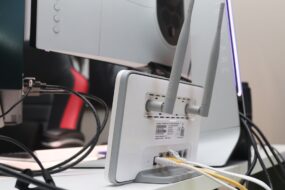
When it comes to optimizing your home Wi-Fi network performance, the type of router you have plays a major role. Not all routers are created equal. Here’s what most people get wrong—they stick with the basic router provided by their Internet Service Provider (ISP) and expect top-notch performance. In my experience, investing in a quality router can make a world of difference.
Look for a dual-band router that supports 2.4 GHz and 5 GHz bands. The 2.4 GHz band has a longer range and penetrates walls better, while the 5 GHz band offers faster speeds but shorter range. By using both bands, you can maximize your Wi-Fi potential. Additionally, consider a router with newer technology like Wi-Fi 6, which can significantly improve your home network.
Optimal Router Placement
Just buying a high-quality router isn’t enough; where you place it matters, too. A poorly located router can lead to dead zones in your home, where the Wi-Fi signal is weak or nonexistent. Ideally, you should position your router in a central location, away from walls and obstructions. High locations, like shelves or the top of cabinets, often work best, as the signal travels downward.
If you live in a multi-story home, placing the router on the top floor can help distribute the signal more evenly. Remember, the more walls and floors the signal has to pass through, the weaker it becomes. So if you can find a midpoint, you’ll likely improve Wi-Fi signal strength considerably.
Minimizing Interference
Another element in the Wi-Fi equation is interference from other electronic devices. Common culprits include microwaves, cordless phones, and even Bluetooth devices. These can cause your Wi-Fi signal to drop or slow down significantly. To optimize your home Wi-Fi network performance, try to keep your router away from these devices.
Interestingly, your neighbors’ networks can also interfere with yours, especially if they’re on the same channels. Using a tool like Wi-Fi Analyzer can help you identify which channels are most congested and assist in switching to a less crowded one. Most routers allow you to change the channel in the settings, helping to improve your Wi-Fi speed and overall experience.
Updating Firmware Regularly
Many people forget that their router needs updates, just like their computers and smartphones. Manufacturers often release firmware updates that improve performance, security, and features. They won’t automatically update unless you manually allow them to do so, and missing these updates could mean missing out on optimizing your home Wi-Fi network performance.
Checking for updates is usually as simple as logging into your router’s settings through a web browser. You should schedule regular checks—maybe once every few months—so you’re not left behind on improvements and security patches.
Securing Your Network
An open or poorly secured Wi-Fi network can lead to unauthorized users connecting to your network, which can significantly slow down your Internet speed. Securing your network is crucial for both speed and safety. Here are some home network tips:
- Change the default SSID (network name) and password.
- Use WPA3 encryption if available, or at least WPA2.
- Regularly update your Wi-Fi password.
- Turn off guest networks unless necessary.
By doing this, you can prevent unwanted guests from tapping into your bandwidth, leaving more room for your devices, and thereby enhancing your overall experience.
Wired vs. Wireless Connections
For devices where speed and reliability matter the most, like gaming consoles and desktop computers, consider using a wired connection. Connecting via Ethernet cable often provides a more stable and faster connection, helping you avoid the frustrations of Wi-Fi lag. In my experience, using a wired connection for at least some devices can vastly improve your home network performance.
If running wires isn’t feasible, consider powerline adapters. These devices use your home’s electrical wiring to extend the network without needing new cables. They’re a handy solution for improving Wi-Fi signal strength in areas where running a cord would be challenging.
Using Mesh Wi-Fi Systems
If you live in a larger home or one with multiple floors, a single router may not provide enough coverage. This is where mesh Wi-Fi systems come into play. Mesh networks use multiple nodes to blanket your home in Wi-Fi coverage, eliminating dead zones and ensuring consistent speeds throughout your living space.
While these systems can be more expensive than traditional routers, the investment can pay off by ensuring everyone in the house has optimal access. When researching mesh options, look for reviews that focus on performance in real-world scenarios, as marketing hype often doesn’t reflect reality.
Regularly Restart Your Router
It might sound overly simplistic, but regularly restarting your router can help with performance. Just like your computer slows down after long use, routers can benefit from a reboot. Restarting helps clear the cache and gives the device a fresh start. Ideally, you should consider restarting your router at least once a month or set a reminder.
Some modern routers even come with a scheduling feature that reboots automatically during off-peak hours, which can be particularly useful.
Monitoring Your Network
Finally, to truly optimize your home Wi-Fi network performance, it’s essential to keep an eye on how well your network is functioning. Applications like Wi-Fi Explorer or NetSpot can help you analyze your network’s performance. By monitoring your connections, you can gain insights into areas that need improvement or whether your Internet speed meets your ISP’s promises.
Most routers come with built-in monitoring capabilities as well, so check out your router’s settings. This helps you troubleshoot connectivity issues as they arise, helping you stay ahead of the curve.
Conclusion
Optimizing your home Wi-Fi network performance isn’t as complicated as it may seem. By choosing the right router, placing it wisely, minimizing interference, and monitoring your network, you can significantly improve your Wi-Fi speed and signal strength. Don’t underestimate the difference these adjustments can make. Believe me, it’s worth it! Whether you’re streaming, gaming, or working from home, a strong Wi-Fi connection is increasingly crucial in today’s digital world.
So before you get too frustrated with that spinning wheel or buffering icon, revisit the tips outlined here. From simple placement changes to considering new systems, there’s plenty you can do to take control and experience the internet the way it’s meant to be experienced—fast and reliable.