Picture this: It’s a rainy afternoon, and you’re cozy on the couch, ready to binge-watch your favorite series. You grab the remote, prop it on your lap, and just about to hit play when—surprise! There’s no internet. Frustrating, right? You’re not alone; Wi-Fi connectivity issues can strike at the most inconvenient times. Today, we’re diving deep to help you troubleshoot common Wi-Fi connectivity issues so you can get back to what you enjoy.
Understanding Wi-Fi Connectivity Issues
Before diving into how to troubleshoot common Wi-Fi connectivity issues, it’s essential to understand what might be causing the problem. Wi-Fi is notoriously finicky, and a range of factors can affect your connection:
- Distance from the router: The farther you are, the weaker your signal.
- Interference: Electromagnetic interference from other devices can disrupt your connection.
- Obstacles: Thick walls, furniture, and even appliances can block Wi-Fi signals.
- Network overload: Too many devices connected can slow down or drop your connection.
- Outdated hardware: Old routers or Wi-Fi adapters may struggle with modern demands.
In my experience, understanding these problems is half the battle. Now let’s get into the nitty-gritty of fixing them.
Common Symptoms of Wi-Fi Issues
Before you can troubleshoot common Wi-Fi connectivity issues, you need to identify them first. Some of the most common symptoms include:
- Slow internet speed, making loading times unbearable
- Frequent disconnects or the inability to connect at all
- Inconsistent connection; sometimes it’s fast, other times it’s a crawl
- Limited access on specific devices while others work fine
These are just a few symptoms that indicate something is amiss. Once you recognize these signs, it’s time to roll up your sleeves and get to work!
Step-by-Step Wi-Fi Troubleshooting Guide
Here’s a quick guide you can follow when you encounter Wi-Fi issues. I recommend grabbing your device and checking these steps as you go to troubleshoot common Wi-Fi connectivity issues effectively.
1. Restart Your Modem and Router
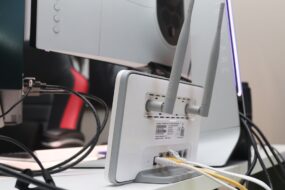
It sounds cliché, but a good old-fashioned reset can work wonders. Unplug your modem and router, wait about 30 seconds, then plug them back in. This simple act clears temporary configurations and often resolves connectivity problems.
2. Check Your Device
If the issue persists, check the device you’re using. Sometimes the problem isn’t with the Wi-Fi at all. Make sure:
- Your Wi-Fi is turned on.
- You haven’t accidentally enabled airplane mode.
- Your device has the latest software updates installed.
If everything looks good on your device, it’s time to investigate further.
3. Test the Signal Strength
Next, consider your distance from the router. If you’re far away, try moving closer and see if that resolves the issue. Most devices will show you the Wi-Fi signal strength, usually represented by a series of bars. If you’re at two or fewer bars, it might be time to rethink your router’s location.
4. Limit Device Connections
Ever heard about the ‘bandwidth hog’? Too many devices can lead to slow speeds or dropped connections. Try disconnecting some devices temporarily to see if that helps with your connection. This is particularly useful if you live in a busy household where everyone is streaming or gaming at the same time.
5. Change Wi-Fi Channel
Your router operates on specific channels, and if everyone in your neighborhood is on the same one, you could face interference. Access your router settings (head to your browser and type in your router’s IP address) and try changing the channel. Typically, channels 1, 6, and 11 are the most commonly recommended for 2.4 GHz networks.
6. Reboot Your Devices
Don’t forget about those other devices! Restart smartphones, tablets, and computers experiencing issues. Sometimes the fix lies in refreshing the connection from the device’s end.
Advanced Techniques for Fixing Wi-Fi Issues
If you’ve gone through basic troubleshooting and are still facing internet connection problems, you might need to employ some advanced techniques.
7. Update Router Firmware
Like software on a computer, routers need updates occasionally. Manufacturers release firmware updates to fix bugs and improve performance. Check your router’s manual for instructions on how to do this. If you don’t update your router, you might miss out on important fixes.
8. Check for Interference Sources
Even if you’re within range, other electronic devices can cause interference. Cordless phones, microwaves, and Bluetooth devices are common culprits. Try keeping your router away from these devices, or, if possible, switch to the 5 GHz band for less interference.
When to Call for Help
So, what if you’ve tried all these troubleshooting methods and still can’t seem to fix your Wi-Fi issues? Don’t lose hope! Here are some signs it might be time to call a professional:
- Your internet service provider is experiencing outages in your area.
- Your router is several years old and malfunctioning.
- You’re experiencing frequent issues across multiple devices, signaling a larger problem.
In my experience, sometimes the smartest move is to reach out for expert help, especially when technical troubleshooting feels overwhelming.
Preventive Measures to Maintain a Stable Connection
Once you’ve found and fixed the Wi-Fi issues, it’s wise to take steps to prevent future problems. Here are some suggestions to keep your network running smoothly:
- Regularly reboot your modem and router: Doing this monthly can help maintain an optimal connection.
- Secure your network: Ensure no unauthorized users are hogging your bandwidth by using a strong password.
- Upgrade your equipment: Consider new routers or extenders if your current tech struggles to keep up.
- Monitor connections: Regularly review which devices are connected to identify any unexpected connections.
Conclusion
Wi-Fi issues can be a major source of frustration, but most of the time, they aren’t too difficult to fix. By following this guide to troubleshoot common Wi-Fi connectivity issues, you can save yourself time and stress. Remember, the key is a systematic approach: start simple, identify the symptoms, and then dig deeper if needed. Don’t let connectivity problems keep you from enjoying what you love. Take control of your Wi-Fi—your streaming sessions depend on it!