Picture this: you’re in the middle of an intense online gaming session or binge-watching your favorite series when suddenly, your Wi-Fi decides to go on a break. Frustrating, right? We’ve all been there. In an age where internet connectivity influences almost every part of our lives, it’s essential to improve your home Wi-Fi network speeds. Whether for work, school, or streaming, a slow internet connection can turn peaceful moments into frustrating ones.
Understanding Wi-Fi Basics
Before diving into the nitty-gritty of how to improve your home Wi-Fi network speeds, it’s important to grasp a few key concepts about Wi-Fi. The quality of your Wi-Fi connection is influenced by a number of factors, including:
- Router Location: Your Wi-Fi signal gets weaker the further you are from the router. Walls, floors, and even furniture can block the signal.
- Network Congestion: If there are too many devices connected to your network, you may experience slower speeds. Every device requires bandwidth, and more devices mean a dilution of that available speed.
- Internet Plan: Sometimes, the bottleneck isn’t your network at all. Your internet service provider (ISP) might offer a plan that doesn’t meet your needs.
Choosing the Right Router
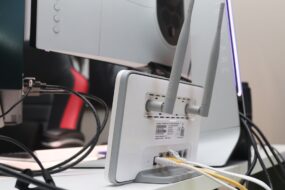
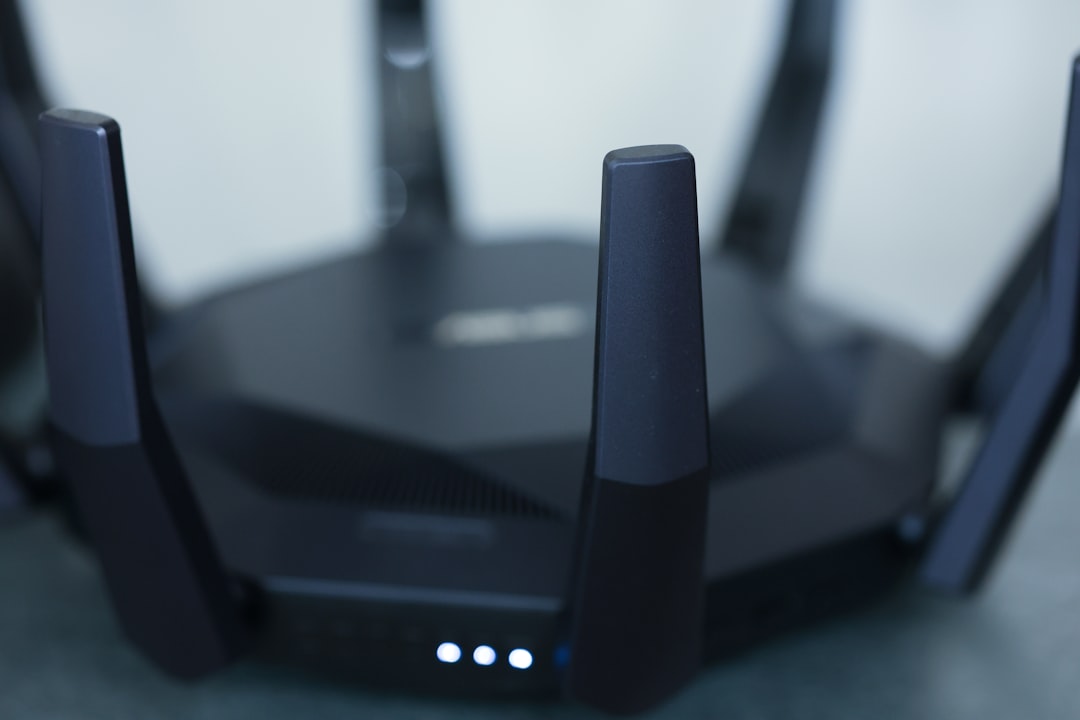
One of the first steps to improve your home Wi-Fi network speeds is selecting the right router. Not all routers are created equal. Here’s what most people get wrong: they often underestimate the impact of a good router on their network’s performance.
If you’re still using an outdated router, it might be time for an upgrade. Look for routers that support the latest Wi-Fi standards, like Wi-Fi 6 or Wi-Fi 6E. These models are designed to handle more devices and traffic with better efficiency, which can help increase Wi-Fi speed significantly.
Optimizing Your Router Placement
Even the best router can’t do its job effectively if it’s not placed correctly. The location of your router is critical for improving your home Wi-Fi network speeds. Here are a few tips:
- Central Location: Place your router in a central location in your home to maximize coverage.
- Elevation: Keep the router elevated—on a shelf rather than on the floor is best—to help the signal spread outwards.
- Avoid Obstacles: Walls and large furniture can weaken the signal. Keep the area around the router clear.
Wi-Fi Frequency Bands
Most modern routers operate on two different frequency bands: 2.4 GHz and 5 GHz. Understanding these frequency bands can help you optimize your home network.
The 2.4 GHz band has a longer range but offers slower speeds, while the 5 GHz band provides faster speeds but has a shorter range. Here’s how you can optimize your use of these bands:
- Connect to the Right Band: For devices that are far from the router, connect them to the 2.4 GHz band. Closer devices will benefit from the higher speeds of the 5 GHz band.
- Use Dual-Band Routers: If you don’t already have one, consider getting a dual-band router that can provide connections on both bands.
Regularly Updating Firmware
Like any tech device, routers need updates from time to time. Failing to update your router’s firmware could mean missing out on enhanced performance features or security updates. To improve your home Wi-Fi network speeds, make sure you’re regularly checking for and installing updates.
Some routers allow for automatic updates, which is great. But if yours doesn’t, set a reminder to check manually every couple of months.
Securing Your Network
Another reason your Wi-Fi might feel sluggish could be that unauthorized users are hogging your bandwidth. If your network isn’t secure, neighbors or even passersby might connect without your knowledge. Securing your network is crucial:
- Change Default Login Credentials: Many routers come with default usernames and passwords that are easy for attackers to guess.
- Use Strong Encryption: Use WPA3 if your router supports it, or at least WPA2. This can help protect against unwanted intrusions.
- Guest Network: Make use of a guest network for visitors. This prevents them from accessing your main network, which can help keep it secure.
Managing Device Connections
If your family or roommates are all streaming videos, playing games, or downloading large files at the same time, you might notice slowdowns. To improve your home Wi-Fi network speeds, it’s worth managing how and when devices connect to your network.
Here are a few practical steps:
- Prioritize Devices: Many routers offer Quality of Service (QoS) settings that let you prioritize bandwidth for certain devices or applications.
- Limit Background Apps: Check for apps that might be running in the background and consuming bandwidth. Things like cloud backups, software updates, or even automatic downloads can take up valuable resources.
Using Wi-Fi Boosters or Mesh Networks
If you’ve tried everything but still experience weak signals in certain areas of your home, consider investing in Wi-Fi boosters or a mesh network. Wi-Fi extenders amplify your existing signal, whereas mesh networks use multiple nodes to create a comprehensive Wi-Fi coverage area. Here’s how they can help:
- Wi-Fi Extenders: These devices extend your Wi-Fi range, connecting to your router and then enlarging the coverage area.
- Mesh Systems: Unlike traditional extenders, mesh networks come with multiple units that work together to cover a larger area without losing speed between nodes.
Conclusion: Summary of Wi-Fi Tips
Improving your home Wi-Fi network speeds doesn’t have to be a daunting task. By following the above steps—updating your router, managing connections wisely, and even upgrading your hardware—you can enhance your online experience significantly.
In my experience, most people don’t realize the impact of simple changes, like router placement or firmware updates, on their daily internet use. So, the next time you find yourself screaming at your slow connection, remember these tips. They can make all the difference in bringing faster internet to your home.
With a little effort and a few adjustments, you’ll be well on your way to enjoying a much-improved home network that meets all your online needs. Say goodbye to buffering and lagging, and hello to a faster Wi-Fi experience!