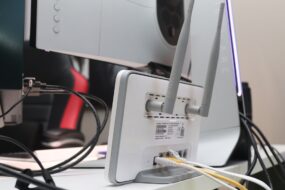
Imagine this: you’ve settled in for an evening of binge-watching your favorite series, only to discover that your Netflix is buffering more than it’s actually playing. Frustrating, right? This scenario is all too common in households today. If you’ve been struggling with slow internet speeds, you’re probably curious about how to optimize your home Wi-Fi network speed. Spoiler alert: it’s not just about flashing a newer router or blaming your ISP. Let’s explore some practical, hands-on Wi-Fi optimization tips that can genuinely boost your home internet performance.
Understanding Your Wi-Fi Setup
If you want to learn how to optimize your home Wi-Fi network speed, the first step is understanding how your network works. Most of us have a modem and a router, but many don’t realize how these devices interact. The modem connects to your internet service provider (ISP) and translates their signal into something your router can distribute. The router, in turn, spreads that signal throughout your home as Wi-Fi. If either of these devices is outdated or improperly configured, it can significantly impact your Wi-Fi speed.
In my experience, a router’s age plays a critical role in performance. Older models may not support the latest Wi-Fi standards, leading to slower speeds and increased buffering times. So, start by checking the make and model of your router. If it’s more than five years old, it might be time to invest in a new one.
Evaluating Your Internet Plan
Before diving deep into technical fixes, check your internet speed plan. Many folks pay for higher speeds but have no idea what their actual speed is. Use an online speed test, like Speedtest.net or Fast.com, to evaluate your current situation. Knowing how much bandwidth you’re actually receiving is helpful when determining whether to upgrade your service or optimize your home Wi-Fi network speed.
Here’s what most people get wrong: they blame their hardware when the issue might be their plan. If you have a slow plan but are trying to support multiple devices and heavy usage, it’s time to recalibrate your expectations. Consider reaching out to your ISP to see if they offer higher speeds or more suitable plans for your needs.
Router Placement Matters
One of the easiest adjustments you can make is to reposition your router. The physical environment can significantly influence signal strength. Ideally, place your router in a central location, elevated and clear of obstacles. Walls, furniture, and appliances can weaken your Wi-Fi signal. If you’ve tucked your router away in a closet or behind a pile of books, it’s likely not broadcasting its signal effectively.
In my experience, the placement issue is often overlooked. I’ve witnessed households shift their routers from a corner of the basement to the top of an entertainment center, resulting in a noticeable speed boost. Make sure to avoid putting it near electronics that emit interference, such as microwaves or cordless phones.
Use the Right Frequency Band
Modern routers typically offer two frequency bands: 2.4 GHz and 5 GHz. The 2.4 GHz band covers a larger area but tends to be slower and more prone to interference. The 5 GHz band, on the other hand, offers faster speeds but has a shorter range. If you’re looking to optimize your home Wi-Fi network speed, switching to the 5 GHz band can significantly improve performance, especially if you’re closer to the router.
- 2.4 GHz: Best for coverage but limited speed. Good for devices that don’t require a lot of bandwidth, like smart home devices.
- 5 GHz: Offers faster speeds, making it ideal for streaming and gaming. Best used when you’re within a short distance of the router.
Check your router settings to see if you can enable both bands. Many routers now have a “band steering” feature that automatically connects devices to the best band. If yours doesn’t, you may want to connect your devices manually.
Keep Your Router’s Firmware Updated
Just like any software, router firmware requires regular updates. Manufacturers often release firmware updates that can fix bugs, improve performance, and enhance security features. Here’s an easy tip: check for firmware updates regularly or enable automatic updates if your router supports that feature. Keeping everything updated is a simple way to help optimize your home Wi-Fi network speed.
Surprisingly, I’ve come across several friends who never thought about checking their router for updates. One friend reported a drastic improvement in Wi-Fi stability after simply updating her firmware. Don’t let outdated software be the reason for your slow speeds!
Manage Connected Devices
Every device connected to your Wi-Fi network takes up bandwidth. If you’ve got multiple devices streaming videos, downloading large files, or playing online games simultaneously, it’s bound to eat into your internet performance. Monitoring and managing the devices on your network can go a long way in improving Wi-Fi speed.
Consider prioritizing bandwidth for specific devices. Most modern routers include Quality of Service (QoS) settings that allow you to allocate bandwidth based on your needs. If you’re a gamer, you might want to prioritize the gaming console over smart TVs or streaming devices.
- Identify High-Usage Devices: Use your router’s app or web interface to see which devices are using the most bandwidth.
- Set Up Guest Networks: If you frequently have visitors, setting up a guest network can help manage traffic and keep your main network running smoothly.
Minimize Interference
Interference can come from many sources, including neighboring Wi-Fi networks, electronic devices, and even physical obstacles. If you’re looking to optimize your home Wi-Fi network speed, you need to reduce interference as much as possible. Here are some strategies to consider:
- Change Your Channel: Routers have multiple channels they can operate on, especially in the 2.4 GHz band. If neighboring networks are crowding a channel, consider switching to a less congested one. Tools like NetSpot can help analyze nearby networks.
- Limit Electronic Interference: Keep your router away from devices like microwaves and cordless phones. Also, keep it elevated to minimize physical barriers.
Most people don’t realize that small adjustments can lead to measurable improvements in Wi-Fi speed. Take a few minutes to assess your surroundings and see where you can reduce interference.
Consider Extenders or Mesh Systems
If you’ve implemented all the tips above and still aren’t satisfied with your Wi-Fi performance, it might be time to consider additional hardware. Wi-Fi extenders or mesh systems can help expand coverage and boost speed in larger homes or those with tough layouts.
Wi-Fi extenders amplify your existing signal and help improve coverage in areas that struggle with weak reception. On the other hand, mesh systems consist of multiple routers working together as a single network, allowing for better coverage and consistent speeds throughout your home.
In my experience, many people underestimate the power of these devices. A simple extender made a world of difference for a family member living in a multi-story home. It cut out dropouts automatically and allowed them to enjoy uninterrupted internet at all times.
Regularly Monitor Speed and Performance
Finally, keep an eye on your Wi-Fi performance over time. Regularly testing internet speeds and monitoring for bottlenecks will help you pinpoint issues as they arise. It’s far easier to troubleshoot a problem while it’s still small than to wait until it disrupts your entire system.
Many routers now come with built-in apps that help monitor performance, or consider setting a schedule to check your speeds every month. Remember, being proactive can save you a lot of headaches down the line.
Final Thoughts
Optimizing your home Wi-Fi network speed isn’t as daunting as it may seem. By understanding your setup, managing devices, and making a few simple changes, you can significantly boost your home internet performance. Remember, hardware may play a role, but there are plenty of practical steps you can take to improve Wi-Fi speed without breaking the bank.
So the next time you find yourself buffering in the middle of an episode, remember these tips. You’ve got the power to transform your Wi-Fi experience with just a few actionable changes!