Picture this: it’s Friday night, your favorite show is about to start, and just as you settle in with your popcorn, your streaming service buffers. Frustrating, right? If you’re tired of lagging videos and interruptions, it might be time to optimize your home Wi-Fi network for streaming. Here’s how to ensure your binge-watching sessions go uninterrupted!
Understanding Your Current Setup
Before making any changes, it’s crucial to understand what you’re working with. Take a moment to assess your current internet speed and Wi-Fi coverage. Most people don’t realize that having a decent internet package doesn’t always translate to fast streaming. Here’s what you should check:
- Internet speed: Use a speed test tool like Speedtest.net to see your current download and upload speeds.
- Router placement: Where’s your router located? Is it hidden away in a corner? The position can greatly impact coverage.
- Connected devices: How many devices are using your Wi-Fi? More devices can slow down your connection.
In my experience, many people overlook their router’s position and the number of devices connected. Knowing where you stand is half the battle!
Improve Wi-Fi Speed: Start with the Basics
If you want to optimize your home Wi-Fi network for streaming, basics are crucial. Here are some foundational steps:
- Reset your router: Sometimes, a simple restart can work wonders. It clears out unnecessary data and connections.
- Update firmware: It’s essential to keep your router’s firmware updated to maintain optimal performance. Check your router’s settings for any available updates.
- Change the channel: Wi-Fi routers can operate on multiple channels. If you’re on a crowded channel (especially in apartment buildings), switch to a less congested one.
Most people don’t think to reset their routers, but this simple act can boost your speed significantly!
Router Placement: Position Matters
As mentioned earlier, where you place your router can make a big difference. Try to situate it in a central location in your home, away from walls and obstacles. Avoid placing it in tight spaces like cabinets or behind furniture. The goal is to maximize coverage. Here are some tips:
- High and open spaces: Ideally, position your router on a high shelf or mount it on a wall.
- Distance from interference: Keep it away from microwaves, cordless phones, and thick walls.
- Consider the layout: The shape and materials of your home can affect how the signal travels. Open spaces allow for better flow.
Here’s what most people get wrong: they think simply upgrading their router will solve all their problems. But if it’s poorly placed, you won’t see much improvement.
Quality of Service (QoS) Settings
Most modern routers come equipped with a QoS feature that allows you to prioritize certain types of traffic. If you’re serious about streaming without interruptions, this is worth exploring. By optimizing these settings, you can:
- Prioritize video streaming: Set your streaming device as a priority over other devices during peak usage times.
- Limit bandwidth for other devices: This can help free up more speed for your streaming service, reducing buffering.
In my opinion, many users overlook QoS settings simply because they sound complicated. But they’re genuinely user-friendly and can make a noticeable difference.
Switching to a Wired Connection
If you’re still facing issues, consider using a wired connection for your streaming device. While Wi-Fi is convenient, sometimes the reliability of a direct connection outweighs the convenience. Here’s what to consider:
- Ethernet cables: Running an Ethernet cable from your router to your device can offer a more stable connection.
- Less interference: Wired connections are generally less susceptible to interference, so you can enjoy a smoother experience.
For households with multiple users streaming simultaneously, a wired connection can make all the difference in ensuring everyone enjoys their favorite shows without buffering.
Upgrading Your Equipment
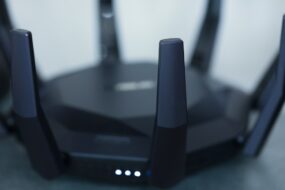
If you’ve done everything and still struggle to optimize your home Wi-Fi network for streaming, it might be time to consider upgrading your equipment. Here are a few options:
- Better Router: Look for a router that supports the latest Wi-Fi standards (Wi-Fi 6 is a great choice). These routers can handle more devices with better speed.
- Range extenders: If you have a larger home, a range extender can ensure that dead zones receive a signal boost.
- Mesh networks: For the ultimate in coverage, a mesh network system can provide a blanket of Wi-Fi across your home.
Many people stick with their old routers longer than they should. Investing in a better home internet setup can be one of the best decisions you make for your streaming experience.
Consider Your Internet Plan
Sometimes the issue lies not with your equipment but with your actual internet plan. If your provider’s plan doesn’t meet your streaming needs, consider upgrading. Here’s what to keep in mind:
- Speed requirements: Different streaming services have varying speed requirements. Netflix, for example, recommends at least 25 Mbps for 4K streaming.
- Provider options: Research what other ISPs offer in your area. You might find better speeds or more cost-effective plans.
In my experience, too many people stick with their plans out of habit. Don’t be afraid to switch if you find a better option that can enhance your streaming experience!
Final Thoughts
Streaming should be an enjoyable experience, not a frustrating one. By taking the time to optimize your home Wi-Fi network for streaming, you can say goodbye to endless buffering and hello to uninterrupted binge-watching. Implementing some of these Wi-Fi tips for streaming is well worth the effort, and you’ll notice the difference in your viewing experience.
It all starts with understanding your current setup and making adjustments where necessary. Don’t forget to prioritize devices during peak hours, and consider upgrading your equipment or plan if things aren’t improving. With the right steps, you’ll enjoy better home internet and a much smoother streaming experience!