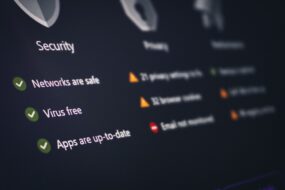
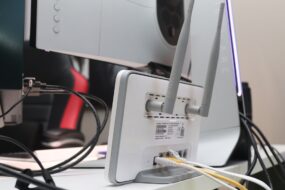
Picture this: You’re sitting in your living room, sipping a hot cup of coffee, when suddenly the Wi-Fi goes down. Frustration sets in, but your worry kicks in when you remember a recent news story about hackers infiltrating unsuspecting home networks. What if they’re already in your Wi-Fi, snooping around? This concern isn’t unfounded. Most people don’t think much about how to secure your home Wi-Fi network, yet securing it is more important than ever.
Home network security isn’t just about having the fastest internet speed or the latest gadgets. It’s about protecting your personal information, privacy, and devices from potential threats. In this post, we’re diving deep into the practical steps you can take to guard your home Wi-Fi against unwanted intruders.
Understanding the Importance of Home Network Security
Why should you care? Well, if you think your Wi-Fi network isn’t interesting enough for hackers, think again. Any network connected to the internet can be targeted. In fact, many hackers look for easy targets—networks with default settings or outdated security protocols. In my experience, most people underestimate the value of their personal data, and that’s where the real issue lies.
Not only can a compromised network give hackers access to your personal files, but it can also lead to identity theft. Picture someone using your Wi-Fi to access your online banking—an alarming thought, right? Knowing how to secure your home Wi-Fi network can protect you from potential disasters, both big and small.
Change Default Settings
One of the first and easiest steps you can take to protect home Wi-Fi is changing default settings. Most routers come with generic usernames and passwords that are easy for anyone to find online. If you’ve never changed yours, you might as well have a big sign in your front yard saying, “Welcome, hackers!”
Here’s what to do:
- Log in to your router’s settings page (usually done by typing your router’s IP address into a web browser).
- Change the default username and password to something unique and complex. Consider using a passphrase or a combination of letters, numbers, and symbols.
Encrypt Your Wi-Fi Network
Once you’ve changed the default settings, the next step is to encrypt your Wi-Fi network. Most modern routers come with several encryption options, but you should select WPA3 if it’s available. If not, WPA2 is still decent, but don’t settle for WEP—it’s outdated and can be easily cracked.
Encryption serves as a lock on your door, keeping unwanted guests out. It also ensures that any data transmitted over your Wi-Fi network remains private. To set this up, go back into your router’s settings, find the “Wireless Security” or “Wi-Fi Security” section, and choose the appropriate option.
Regularly Update Your Router’s Firmware
Just like your computer or smartphone needs updates, so does your router. Outdated firmware can leave your network vulnerable to attacks. Most routers can automatically check for updates, but it doesn’t hurt to do it manually to make sure everything’s up to date.
Here’s a quick guide:
- Access your router’s settings page.
- Look for a section labeled “Firmware Update” or “Router Upgrade.”
- Follow the prompts to check for available updates and install them.
Set Up a Guest Network
If you often have guests visiting your home, you might want to consider creating a guest network. This isolates your main network from visitors, ensuring they can’t access your devices or personal files. Most routers offer this feature, making it easy to set up.
To create a guest network:
- Access your router settings and find the “Guest Network” or “Guest Access” option.
- Set a separate name (SSID) and password for this network.
- Choose whether you want to allow guests to see each other and your main network.
Implement MAC Address Filtering
Another smart move is to implement MAC address filtering. Every device has a unique MAC address, and you can tell your router to only allow specific devices to connect to your network. While this won’t completely protect you, it adds another layer of security.
Setting it up is pretty straightforward:
- Find your device’s MAC address (usually found in the settings of your device).
- Access your router settings and find the “MAC Filtering” section.
- Add your device’s MAC address to the list.
Monitor Connected Devices
One of the best ways to keep tabs on your network is to regularly monitor connected devices. Most modern routers give you the ability to see what devices are connected to your network at any given time.
When I do this, I often find that there are devices connected that I don’t even recognize. If you see a device that seems suspicious, it might be worth disconnecting and changing your Wi-Fi password to block them out.
Disable Remote Management and WPS
If your router has features like remote management or WPS (Wi-Fi Protected Setup), it’s wise to disable them. While they offer convenience, they also open doors for hackers. Remote management allows you to access your router settings from anywhere, but it can also be a vulnerability if not properly secured.
Here’s how to disable them:
- Log into your router’s settings page.
- Look for the “Remote Management” section and turn it off.
- Find the WPS settings and disable that as well.
Strengthen Your Passwords
Lastly, let’s talk about passwords. If you’ve been using the same password for years, it’s time for a change. Your Wi-Fi password should be different from your other passwords and should be complex enough to resist guessing attacks.
Tips for creating strong passwords:
- Use at least 12 characters, mixing uppercase and lowercase letters, numbers, and symbols.
- Avoid commonly used phrases or simple patterns.
- Consider using a password manager to help you keep track of multiple passwords.
Conclusion
Knowing how to secure your home Wi-Fi network isn’t just a nice-to-have—it’s a must in our increasingly digital lives. By taking these steps seriously, you’re not only protecting your devices but also safeguarding your personal information. Whether you’re changing default settings, encrypting your network, or monitoring connected devices, every little bit of effort counts.
It’s time to take control of your home network security. By implementing these Wi-Fi security tips, you can enjoy your browsing experience without the nagging worry of potential intrusions. Let’s face it, in a world where our lives are intertwined with technology, a secure home network is not just an option; it’s essential.