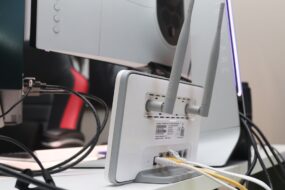
Imagine settling in for a productive workday in your home office, coffee in hand, only to find yourself wrestling with a Wi-Fi signal that seems to have a mind of its own. One moment you’re connected, and the next you’re staring at a spinning wheel of doom—how frustrating! Many of us have found ourselves in this situation, and it’s especially annoying when you’re trying to meet a deadline or have a crucial video call. So, how do you improve Wi-Fi signal strength in your home office once and for all?
In this guide, I’ll share practical strategies you can implement to boost home Wi-Fi and create a more reliable internet setup. From small tweaks to major upgrades, there’s something for everyone aimed at cleaning up that frustrating connection. Let’s get started!
Understand Your Current Setup
Before diving into solutions, it makes sense to evaluate your current home office internet setup. There are a couple of key aspects to consider:
- Router Location: Where’s your router placed? Ideally, it should be in a central location to distribute the signal efficiently. If it’s stuffed in a corner or hidden away, its effectiveness plummets.
- Obstacles: Keep in mind what’s between your router and your devices. Walls, furniture, and even appliances can interfere with the signal.
In my experience, simply relocating the router can make a significant difference. Try placing it higher up or in a more open space. You might be surprised how much this minor adjustment helps your connection!
Check Your Internet Speed
Next, let’s determine whether your internet speed is contributing to your woes. Use an online speed test to measure your connection. This will give you a baseline to work from. If you’re not getting the speed you’re paying for, you might need to reach out to your service provider.
Moreover, most people don’t realize that the actual speed can be affected by various factors such as the time of day, the number of connected devices, and even your equipment’s age.
Upgrade Your Router
If you’re using an older router, it might be time for an upgrade. Technology has progressed, and newer models are designed to handle multiple devices and provide better coverage. When looking for a new router, pay attention to the following:
- Dual-band or Tri-band: These offer multiple frequencies for your devices to connect to, reducing congestion.
- Wi-Fi Standards: Aim for routers that support at least Wi-Fi 5 (802.11ac) or Wi-Fi 6 (802.11ax) for better speed and efficiency.
A newer router can significantly boost home Wi-Fi and offer the hyper-speed connection you need for those important work tasks!
Consider Wi-Fi Extenders or Mesh Networks
If your home office is far from your router, you might want to look into Wi-Fi extenders or mesh networks. A Wi-Fi extender amplifies the signal to reach areas that are typically hard to cover, while a mesh network comprises multiple nodes that work together to provide seamless coverage throughout your home. Here’s what to keep in mind:
- Wi-Fi Extenders: These are cost-effective and easy to set up for small homes or offices, particularly if you only have a couple of dead zones.
- Mesh Systems: These are best for larger areas where you require consistent signal strength. They can be a little pricier, but in my experience, they are worth the investment if you regularly work from different rooms.
Optimize Your Network Settings
Many people overlook the importance of tweaking router settings. Sometimes, it’s the simple things that can lead to substantial improvements. Here’s how you might optimize your Wi-Fi:
- Channel Selection: Routers broadcast on different channels. If you’re in a densely populated area, your neighbors’ networks might be interfering with yours. Use a Wi-Fi analyzer app to find the least crowded channel and switch to it.
- Router Firmware: Regularly updating your router’s firmware can improve performance and security. Check if updates are available through your router’s settings.
These tweaks can often lead to better Wi-Fi signal strength and a more stable connection in your home office.
Limit Bandwidth-Hogging Applications
Another way to improve your Wi-Fi signal is by managing the devices and applications that use your network. High-bandwidth activities like video streaming, large downloads, or online gaming can sap your speed. You can:
- Prioritize Work-Related Traffic: Some routers allow you to prioritize devices or applications. If you’re in the middle of a video call or online meeting, having this feature can make a huge difference.
- Limit Background Usage: Close any unnecessary applications on your devices that might be hogging bandwidth, especially if you’re working from your home office.
These adjustments can provide a noticeable improvement in your connection quality while you work.
Try a Wired Connection
If you’ve tried all these tips and still struggle with Wi-Fi, it might be worth considering a wired connection. While Wi-Fi is convenient, Ethernet connections generally offer more stable internet access. You might set it up as follows:
- Ethernet Cable: Run a cable from your router directly to your computer. This can often resolve connectivity issues entirely.
- Powerline Adapters: These devices use your home’s electrical wiring to transmit data and can be a good alternative if running long cables is impractical.
Final Thoughts on How to Improve Wi-Fi Signal
Improving Wi-Fi signal in your home office doesn’t have to be complicated or expensive. By following these practical steps, you can create a more productive environment and say goodbye to connection woes. Remember, even small changes—like relocating your router or tweaking network settings—can lead to substantial improvements.
So, whether you’re troubleshooting shaky connections or ready to invest in new tech, don’t let a weak Wi-Fi signal stand in the way of your productivity. With a bit of experimentation and adjustment, you’ll see that boosting your home Wi-Fi can be both manageable and effective.