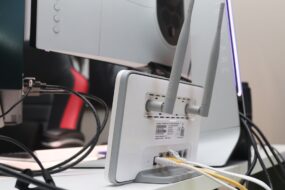
Picture this: You’re at home, ready to stream your favorite series or take part in a video call for work, and suddenly your Wi-Fi connection drops. It’s a frustrating moment we’ve all experienced, and it often leads to asking the same question: How can I optimize my home Wi-Fi network speed?
If you’ve ever found yourself whining about slow internet, you’re not alone. Many people face similar issues, but few understand that small tweaks can make a world of difference. In my experience, optimizing your home Wi-Fi network speed is less about spending big on the newest tech and more about simple adjustments and smart choices. Let’s dive into the essential tips to get you connected and streaming smoothly.
Understanding the Basics of Wi-Fi
Before jumping into solutions, it’s helpful to grasp how Wi-Fi works. A wireless router connects to your internet service and broadcasts the signal throughout your home. The speed and quality depend on various factors like your router’s technology, the number of devices connected, and even physical obstructions like walls.
Different Wi-Fi technologies exist—primarily 2.4 GHz and 5 GHz bands. The 2.4 GHz band covers a larger area but is generally slower, while the 5 GHz band is faster but has a shorter range. Knowing how these bands work will help you make informed decisions about your home network tips.
Assess Your Current Setup
To optimize your home Wi-Fi network speed, start with assessing your current setup. Check your internet speed using one of the many online speed test tools available. Compare the results with what you’re paying for; if there’s a significant gap, it might be time to contact your ISP.
- Speed Test: Use websites like Ookla’s Speedtest to get accurate measurements.
- Router Placement: Ensure your router is centrally located in your home for better coverage.
- Firmware Updates: Check if your router’s firmware is up to date; manufacturers often release updates to improve performance.
Take notes of where the Wi-Fi signal is weak and where you experience interruptions. This will help inform your next steps to improve your Wi-Fi signal.
Router Placement Matters
Believe it or not, your router’s location can dramatically affect your Wi-Fi speed. I’ve seen many homes where the router is tucked away in a corner or hidden in a cabinet. This is a common mistake! For optimal performance, place your router in a central location, away from walls and obstructions. Ideally, it should be elevated off the ground for better signal distribution.
Here are some dos and don’ts when it comes to placing your router:
- Do: Place it in an open space, preferably in the center of your home.
- Don’t: Hide it in a cabinet or behind other electronics.
- Do: Keep it away from microwaves and cordless phones that may interfere with the signal.
- Don’t: Position it near metal objects like filing cabinets, which can obstruct the signal.
Upgrade Your Router
If you’re still using an old router, it might be time for an upgrade. Investing in a newer router can significantly optimize your home Wi-Fi network speed. Modern routers come with advanced features tailored for today’s internet needs, including MU-MIMO technology, which allows multiple devices to connect seamlessly at high speeds.
When selecting a new router, consider these features:
- Dual-Band or Tri-Band Support: Having the option to connect on different frequencies can reduce congestion, especially in households with multiple devices.
- Updated Wi-Fi Standards: Newer standards like Wi-Fi 6 (802.11ax) offer better speed and efficiency.
- Quality of Service (QoS): This feature lets you prioritize bandwidth for specific devices or applications.
Here’s what most people get wrong: they think that simply having faster internet service will solve all their issues. But if your router can’t keep up, you’re wasting money on an upgrade you won’t enjoy.
Secure Your Network
Another crucial aspect of optimizing your home Wi-Fi network speed is ensuring that your network is secure. An unprotected network can be exploited by unauthorized users, which can significantly slow down your speed. Make sure you’ve set a strong password that’s not easily guessable.
- Change the Default Password: Your router comes with a default password that’s easy for hackers to find. Don’t keep the default settings.
- Enable WPA3 Encryption: If your router supports it, switch to WPA3 for better security.
- Regularly Monitor Connected Devices: Keep an eye on who’s connected to your network and remove any unauthorized devices.
In my opinion, security is often overlooked when troubleshooting Wi-Fi issues, yet it can be one of the largest contributors to a slow connection. Always prioritize this aspect to keep your speeds optimal.
Limit Background Usage
Many don’t realize that multiple devices accessing the internet simultaneously can cause your Wi-Fi to slow down. For instance, if you’re streaming video while someone else is gaming or downloading large files, it can lead to buffering and dropped connections. To improve your Wi-Fi signal, consider these strategies:
- Set Usage Priorities: Use QoS settings in your router to prioritize bandwidth for essential uses.
- Limit Device Connections: Disconnect devices that aren’t in use, particularly those that consume a lot of bandwidth.
- Schedule Heavy Tasks: Try to schedule large downloads or backups during off-peak hours, like late at night.
Wi-Fi Extenders and Mesh Networks
If you’ve tried all these tips and still find your signal lacking, it may be time to consider Wi-Fi extenders or a mesh network. Wi-Fi extenders can amplify your existing signal, making it easier to cover those hard-to-reach spots in your home. However, they can sometimes introduce latency, so be cautious with their use.
Alternatively, a mesh network can provide a more efficient solution. Instead of a single router, a mesh system consists of multiple nodes that work together to blanket your home in a strong signal. Here’s why they might be the right choice:
- Wider Coverage: Mesh systems can cover larger areas without the dead zones that extenders can create.
- Scalability: You can add more nodes easily, adapting to your changing needs.
- Easier Management: Many offer user-friendly apps to manage your network from your phone.
Here’s what makes mesh networks appealing in homes with thick walls or multiple floors: the nodes communicate with each other to create a cohesive network, eliminating those annoying dead spots.
Wi-Fi Troubleshooting Techniques
Even after optimizing your home Wi-Fi network speed, you might still encounter occasional issues. Here are some quick Wi-Fi troubleshooting techniques to consider:
- Reboot Your Router: Often, a simple restart can do wonders for your connection.
- Change Channels: Your router broadcasts on specific channels. If there’s interference, switching channels can help.
- Factory Reset: If all else fails, a factory reset can clear up any persistent issues, although you’ll need to set everything up again.
Being proactive with these troubleshooting techniques can save you the headache of recurring slow speeds.
Conclusion
Optimizing your home Wi-Fi network speed doesn’t have to be complicated. With a little knowledge and some practical adjustments, you can significantly improve your situation. Remember that every home is different, so it might take some trial and error to find what works best for you.
From strategically placing your router to considering a mesh network, the possibilities to improve your Wi-Fi signal are plentiful. Don’t forget about security, as protecting your connection can enhance your speeds. With these tips, you should be well on your way to a faster, more reliable internet experience.
So go ahead—make those changes, and enjoy your optimized home Wi-Fi network speed!