Ever sit down to binge-watch your favorite series, only to have the Wi-Fi crash just as the plot thickens? It’s a common nuisance that many of us face. Not only can sluggish connections ruin your viewing experience, but you might also struggle with video calls or online gaming when your home Wi-Fi isn’t performing at its best. If you’re desperate to improve Wi-Fi speed and overall performance in your home, you’re in the right place. Let’s explore how to optimize your home Wi-Fi for better performance and ensure that you never miss a moment of your favorite show again.
Understand Your Wi-Fi Setup
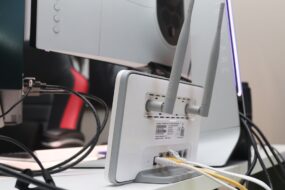
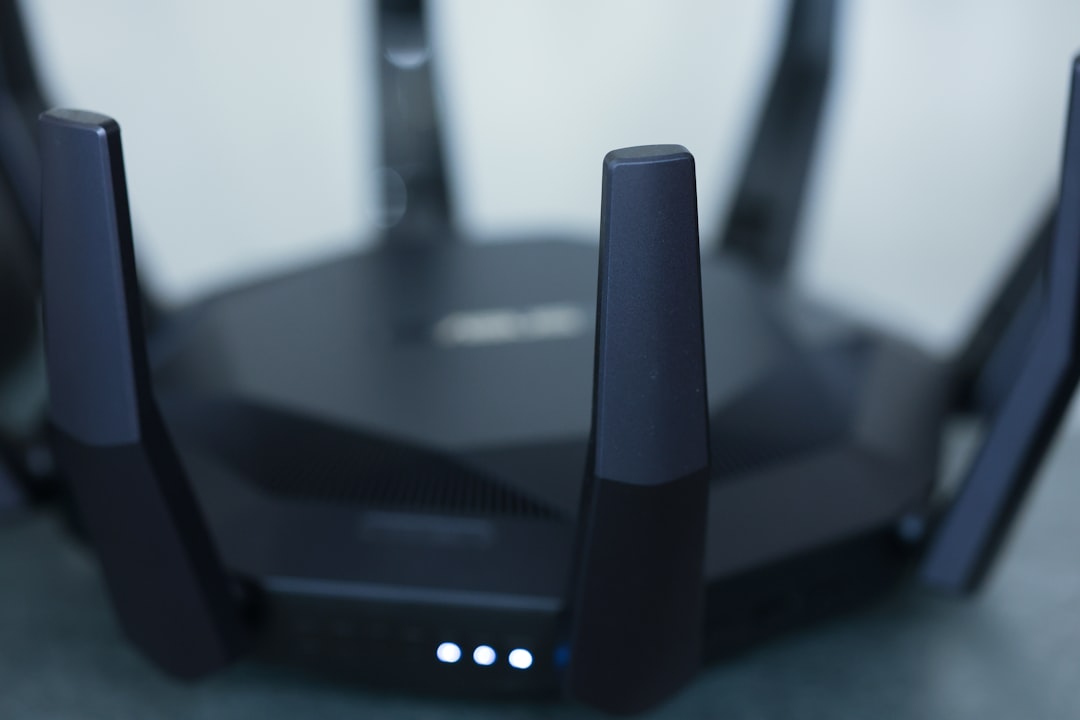
To optimize your home Wi-Fi for better performance, you need to first get familiar with your current setup. Take a look at your router and check the specifications. Is it an older model? If so, it’s likely time for an upgrade. Here’s what most people get wrong: they often overlook the capabilities of their router, assuming it’s still up to the task no matter how old it is. Newer models typically support modern protocols that enhance Wi-Fi speed and stability.
When evaluating your router, consider the following:
- Router Standards: Look for 802.11ac or 802.11ax (Wi-Fi 6) support for better speeds and range.
- Bands: Dual-band routers can broadcast on both 2.4 GHz and 5 GHz, improving performance for various devices.
- Coverage: Consider if your router provides sufficient coverage for your entire home. If it’s struggling, it might be time for a repositioning or an upgrade.
Router Placement Matters
Did you know that the location of your router impacts your Wi-Fi signal strength? A poorly placed router can create dead spots in your home. To optimize your home Wi-Fi for better performance, start by placing your router in a central location, preferably on a high shelf, away from walls or obstacles.
Here are some tips to improve Wi-Fi speed through better router placement:
- Avoid Corners: Keep the router in an open area to avoid interference from walls and furniture.
- Distance Matters: The further you are from the router, the weaker the signal. Ensure it’s within range of the devices you frequently use.
- Keep Away from Electronics: Microwave ovens and cordless phones can interfere with the Wi-Fi signal. Keep your router away from these devices for better performance.
Use a Wired Connection When Possible
If you’re looking to boost your Wi-Fi performance, consider using a wired connection for devices that require stable internet, like gaming consoles or PCs. Ethernet cables provide a faster, more reliable connection compared to Wi-Fi. In my experience, switching to a wired connection for high-demand devices has made a noticeable difference, particularly during online gaming or heavy downloads.
Change Your Wi-Fi Channel
Many people don’t realize that their Wi-Fi is likely competing with neighbors’ networks on the same channel, which can slow things down. Most routers default to a specific channel, but you can manually change it to improve Wi-Fi speed.
Here’s how to do it:
- Access your router’s settings through a web browser using its IP address.
- Navigate to the wireless settings section.
- Select a less congested channel, ideally one that’s not being used by nearby networks.
Update Your Router’s Firmware
Keeping your router’s firmware up to date is crucial for security and performance enhancements. Manufacturers often release updates that can optimize your home Wi-Fi for better performance, addressing bugs or improving functionality.
Here’s how to check for updates:
- Log into your router’s administration portal (usually done through your web browser).
- Look for a section labeled “Firmware Update” or similar.
- Follow the prompts to check for and install any available updates.
Prioritize Bandwidth for Important Devices
Quality of Service (QoS) settings on your router can prioritize bandwidth for devices that need it most. If you’re working from home, playing online games, or streaming video, adjusting these settings can significantly enhance your experience. Many routers allow you to prioritize specific devices, ensuring they get the bandwidth they need.
To adjust QoS settings:
- Access your router’s settings through the web browser.
- Look for a QoS or bandwidth control option.
- Follow the instructions to prioritize your devices, based on your needs.
Add Wi-Fi Extenders or Mesh Systems
If you find that certain areas of your home still lack a strong signal, a Wi-Fi extender or a mesh network system might be the answer. These devices can improve your Wi-Fi signal, making it easier to connect throughout your space.
Here’s a brief comparison:
- Wi-Fi Extenders: These devices take an existing Wi-Fi signal and extend it to cover further distances. They’re generally cheaper but can sometimes create a slower connection.
- Mesh Systems: These consist of multiple units working together to create a single, unified network. They provide a more consistent signal and are particularly useful in larger homes.
Secure Your Network
A secure network isn’t just about keeping intruders out; it also ensures that your bandwidth isn’t being leached by unauthorized users. This is an essential step to optimize your home Wi-Fi for better performance—if others are connected to your network and using bandwidth, it could severely affect your speeds.
To secure your network:
- Change Default Credentials: Customize your network’s name (SSID) and password. Default settings are easy targets for hackers.
- Enable WPA3 Encryption: If your router supports it, use WPA3 encryption for better security, as it’s harder for outsiders to break into your network.
- Regularly Change Passwords: Don’t stick with the same password for too long to enhance your network security further.
Monitor Your Network Usage
Finally, it’s essential to keep an eye on your network usage. You might discover unexpected devices connected to your Wi-Fi or find that certain applications are hogging bandwidth. Many routers come with built-in monitoring tools; if yours doesn’t, consider using third-party software to track usage.
Monitoring can help you identify:
- Bandwidth hogs—devices or applications that consume excessive amounts of data.
- Security breaches—unknown devices that shouldn’t be connected to your network.
- Overall performance issues—receiving alerts for slow connections or interruptions.
Conclusion
Optimizing your home Wi-Fi for better performance doesn’t have to be a daunting task. By understanding your setup, making adjustments to your router placement, and ensuring your network is secure, you can significantly boost your connectivity. In my experience, even small changes—like updating firmware or changing channels—have made a substantial difference in performance.
With these tips, you’ll be well on your way to improving Wi-Fi speed and enjoying a seamless online experience. So go ahead, implement these strategies, and say goodbye to buffering and sluggish internet connections in your home. Happy surfing!