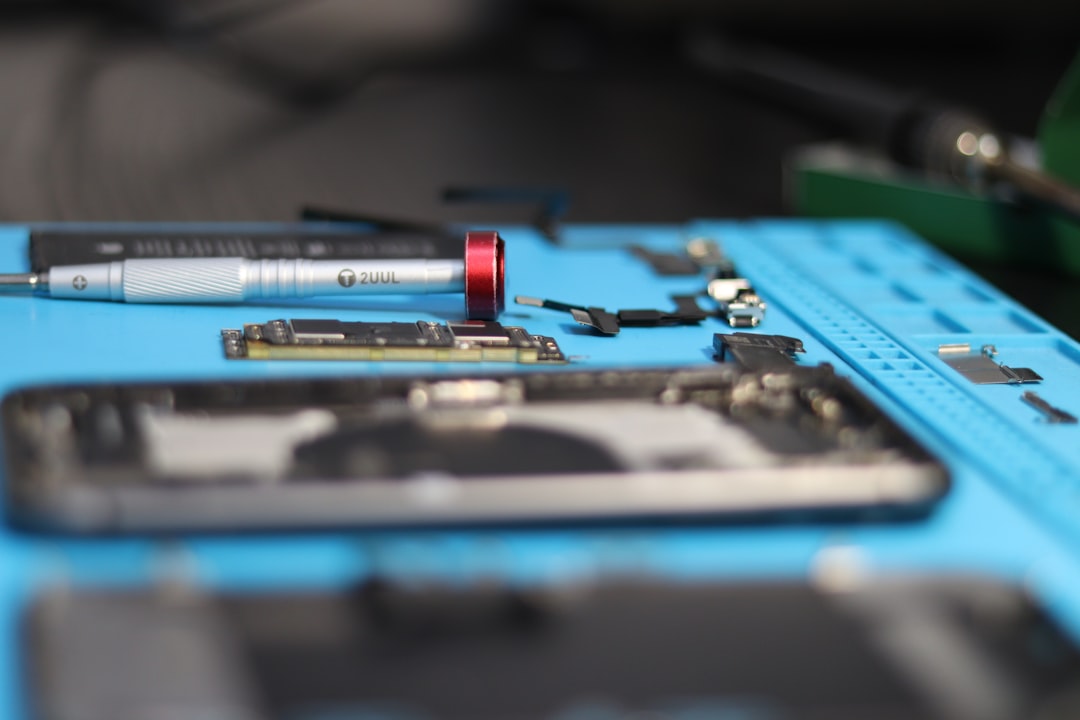
Have you ever been deep into a work project, the adrenaline pumping as you type, only to be jolted by that dreaded pop-up warning you that your laptop battery is dying? It’s a common scenario: a laptop battery not charging correctly, leaving you scrambling for an outlet. But don’t fret! There are ways to tackle this issue. Let’s look at how to fix laptop battery issues so that you can keep your momentum going.
Understanding Laptop Battery Basics
Before diving into solutions, it’s essential to understand how lithium-ion batteries work, as they’re found in most laptops. Over time, every battery can develop issues, whether it’s from age, improper charging habits, or software misconfigurations. In my experience, many people overlook the fundamental concept that batteries don’t last forever. As they age, their capacity diminishes, leading to various problems.
Identifying Laptop Battery Problems
The first step in how to fix laptop battery issues is recognizing the symptoms. Here are some common problems to look out for:
- Laptop Battery Not Charging: Your laptop might show it’s plugged in, yet the battery percentage stays the same or even decreases.
- Unexpected Shutdowns: One moment you’re working, and the next, the laptop dies with little to no warning. This can be a sign of battery failure.
- Battery Swelling: If you notice a bulge in your laptop casing, it could indicate that the battery is failing. This problem shouldn’t be ignored.
- Shortened Battery Life: If you’re suddenly finding your laptop won’t last as long on a single charge, it may be a sign of wear and tear.
How to Fix Laptop Battery Issues: Basic Troubleshooting
Before panicking or considering a replacement, there are several basic troubleshooting steps you can take. Here’s what most people get wrong: they jump straight to conclusions without checking simple fixes.
Check the Power Adapter and Port
Your problem could be as simple as a faulty power adapter. Examine the adapter for any visible damage. Ensure the connection between your adapter and laptop port is clean and secure. A little dust can ruin your day!
Examine Battery Settings
Sometimes, your operating system settings may interfere with battery performance. On Windows, check the Battery settings under Power & sleep settings. For Mac users, head over to Energy Saver settings. Ensure any “Battery Saver” modes aren’t overly restrictive, preventing the battery from charging appropriately.
Perform a Battery Calibration
Battery calibration can bring your battery back to its senses! To do this, fully charge your laptop, then let it drain completely before charging it back up to 100%. This process can help your laptop recognize its actual battery capacity—an essential step in laptop battery troubleshooting.
Advanced Troubleshooting Techniques
If basic troubleshooting doesn’t resolve the issues, you might need to explore more advanced techniques. While these steps may seem daunting, they can often remedy nagging battery problems.
Update Your Operating System and Drivers
Outdated operating systems or drivers can interfere with battery performance. Ensure everything’s updated with the latest firmware and drivers to fix any underlying compatibility issues. Check your laptop manufacturer’s website for the correct drivers.
Check for Background Processes
Some applications, especially those running in the background, can drain your battery significantly. Use Task Manager on Windows or Activity Monitor on Mac to see which apps consume the most power. Close any unnecessary programs and see if that makes a difference.
Other Factors Affecting Battery Life
You might be surprised by how many factors can affect how long your laptop lasts on battery power. In my experience, people often overlook basic usage habits that can negatively impact battery life.
Temperature Considerations
Believe it or not, temperature plays a big role in battery performance. Operating your laptop in extremely hot or cold environments can wreak havoc on the battery. Ideal temperatures are usually between 50°F (10°C) and 95°F (35°C). Ensure your laptop is in a comfortable environment while using it.
Screen Brightness
The brightness of your laptop screen can drain battery life faster than you might expect. Lowering it can significantly extend battery life. Many people don’t realize how much energy the display uses, so tweaking this setting can make a big difference.
When to Consider Replacement
Sometimes fixing laptop battery issues is just a band-aid solution. If you find yourself constantly troubleshooting and your battery continues to underperform, it may be time to consider a replacement. Here are signs that it’s time:
- Age: If the battery is over two years old and shows significant wear, it might be worth replacing it.
- Performance: If calibration and troubleshooting fail, your battery might have lost its capacity for good.
- Swelling: Again, avoid using a swollen battery at all costs. It could cause damage and serve as a fire hazard.
Extending Laptop Battery Life
Once you’ve resolved your current battery issues or even replaced your battery, you’ll want to make sure it lasts as long as possible. Here are some tips to extend laptop battery life:
- Adjust Power Settings: Use power-saving modes provided by your operating system to help conserve battery.
- Avoid Full Discharges: Don’t let your battery die completely often. Lithium-ion batteries prefer partial discharges.
- Limit Resource-Heavy Applications: It’s wise to close heavy apps when you’re running on battery.
- Keep It Clean: Dust accumulates quickly, especially around the vents—keeping them clean can prevent overheating.
Conclusion
Learning how to fix laptop battery issues might seem daunting, but it’s often about a little troubleshooting and maintenance. Don’t forget that your battery’s lifespan does shorten over time, and if you’re constantly finding yourself with battery problems, a replacement might be in order. With the right knowledge and habits, you’ll not only fix your current battery issues, but you’ll also extend laptop battery life for years to come. So the next time your laptop battery isn’t cooperating, you’ll know exactly what to do!