Imagine trying to stream your favorite show, only to be greeted by the spinning wheel of death. Frustrating, right? Whether you’re working from home, gaming late into the night, or simply binge-watching a series, a slow Wi-Fi network can ruin the experience. So, how can you optimize your home Wi-Fi network speed? Let’s dive into practical tips that not only help improve Wi-Fi speed but also enhance your overall online experience.
Understand Your Internet Plan
First things first, take a good look at the internet plan you’ve subscribed to. Many people assume their Wi-Fi is slow when, in reality, they may just not have signed up for an adequate speed tier. Most ISPs offer various plan options based on usage. If you’re a single user who occasionally browses social media, a basic plan might suffice. However, if you have multiple devices streaming, gaming, or participating in video calls, you’ll likely need more bandwidth.
Placement of Your Router Matters
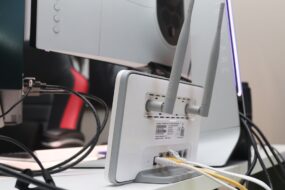
One of the easiest ways to optimize your home Wi-Fi network speed is by positioning your router correctly. Placing your router in a central location within your home is key to maximizing coverage. If it’s tucked away in a corner or placed on the floor, signal strength can suffer drastically.
- Elevate the router: A higher position can help broadcast signals better.
- Avoid obstacles: Keep it away from walls, metal objects, and appliances that could interfere with signals.
- Consider an open space: Open areas allow for better reach of Wi-Fi signals.
In my experience, many people overlook this simple step, but it can lead to noticeable improvements in internet speed.
Choose the Right Frequency Band
If your router supports dual-band, take advantage of it! Most modern routers offer both 2.4 GHz and 5 GHz bands. The 2.4 GHz band covers a larger area and penetrates walls better, but it typically offers slower speeds. On the other hand, the 5 GHz band has higher speeds but shorter range.
Here’s what most people get wrong: sticking to one band and not considering the advantages of switching between them. For activities like gaming or streaming, connecting to the 5 GHz band can enhance Wi-Fi performance significantly. Meanwhile, for general browsing, the 2.4 GHz band might provide better coverage throughout your home.
Secure Your Network
It might sound obvious, but ensuring your Wi-Fi network is secure is crucial for optimizing speed. If your network isn’t password-protected, unauthorized users could be leeching off your bandwidth. This situation can lead to slower speeds and a less reliable connection.
- Change the default username and password: Many users stick with the factory settings, making it easy for intruders to access your network.
- Use WPA3 encryption: If your router supports it, this is the most secure option available.
- Regularly update your password: It’s a good practice to change it every few months to maintain security.
Limit Background Applications
Ever notice that your Wi-Fi slows down when everyone in your household is online? This issue stems from background applications that use up bandwidth without you even knowing it. Streaming services, video calls, and even automatic updates can sap your network’s speed.
To enhance Wi-Fi performance, consider the following:
- Monitor connected devices: Make sure no unauthorized devices are hogging your bandwidth.
- Close unnecessary apps: Before starting a big download or streaming, close all apps that aren’t needed.
- Schedule updates: Set your devices to update when you’re not actively using them, like overnight.
Streamlining your active connections can provide a tangible boost to your Wi-Fi speed.
Update Router Firmware
You might be surprised to learn that keeping your router’s firmware updated can make a significant difference in speed and performance. Router manufacturers periodically release updates that fix bugs, close security holes, and even improve performance.
Here’s a simple way to check for updates:
- Access your router’s settings: Usually done through a web browser using the router’s IP address.
- Locate the firmware update section: Follow the manufacturer’s instructions to see if an update is available.
- Install the update: If available, follow the prompts to update your firmware.
Skipping firmware updates is something many people do, but it could be a fix for some lingering issues, including slow speeds.
Consider Quality of Service (QoS) Settings
If your router supports Quality of Service (QoS) settings, it’s worth checking it out. QoS allows you to prioritize certain types of traffic, ensuring that high-bandwidth activities like gaming or streaming receive priority over less urgent tasks like browsing social media.
Here’s how to get started with QoS:
- Access your router settings: Just like with firmware updates, you’ll need to log in via a web browser.
- Navigate to QoS settings: Consult your router’s user manual as interfaces can vary.
- Set priorities: Assign higher priority to applications where speed is critical, like video games or video calls.
Expand Your Network with Extenders or Mesh Systems
As your home gets bigger, so does the potential for Wi-Fi dead zones. If you notice areas of your house where the signal is weak or non-existent, you might want to consider a Wi-Fi extender or a mesh network. Both options can help cover additional areas of your home, enabling you to optimize your home Wi-Fi network speed more effectively.
- Wi-Fi extenders: They receive your existing signal and rebroadcast it to areas with weak signal strength.
- Mesh systems: These consist of multiple devices working together to blanket your home in Wi-Fi, eliminating dead zones.
In my experience, choosing between extenders and mesh systems depends on your specific needs. If you have a larger home or multiple floors, a mesh system is usually a better long-term investment.
Regularly Test Your Internet Speed
Finally, regularly testing your internet speed can help you track improvements as you implement these tips. Use free speed test websites or apps to monitor your current download and upload speeds. This practice will not only keep you informed but also motivate you to maintain your network optimally.
It’s a good idea to test your speeds at different times of the day, as peak hours can affect performance. If you notice significant slowdowns during certain times, it might be an indication that you need to upgrade your plan or make further adjustments.
Conclusion
Optimizing your home Wi-Fi network speed doesn’t have to be a daunting task. By using these practical tips, you can significantly enhance your Wi-Fi performance and make your online activities much more enjoyable. Understanding your internet plan, securing your network, managing device connections, and knowing how to position your router can all contribute to a better experience.
So, before you let another buffering scene frustrate you, take some time to implement these strategies. You’ll be amazed at how much of a difference small adjustments can make. After all, a strong Wi-Fi connection is essential in today’s digital age, and optimizing your home Wi-Fi network speed is the first step towards a smoother online experience!