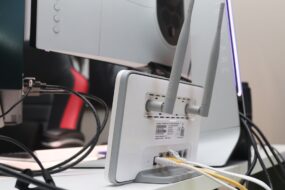
Picture this: it’s a quiet Saturday afternoon, and you’re finally ready to kick back, binge-watch your favorite series, or dive into a new game. But as you sit down, ready to be engulfed in the story, your Wi-Fi decides it’s not the right time for a connection. Does this sound familiar? Slow internet speeds and frustrating disconnections can drive anyone up the wall. So, how do you optimize your home Wi-Fi network performance? Let’s explore some smart home network tips that can significantly improve your Wi-Fi speed and signal strength.
Understanding Your Wi-Fi Network
Before diving into solutions, let’s take a moment to understand how your Wi-Fi works. Your home Wi-Fi relies on a router that communicates with your devices using radio waves. Various factors can affect this performance, including the layout of your home, the type of router you’re using, and interference from other electronic devices. By grasping the basics, you can start to see where improvements can be made.
Choosing the Right Router
Not all routers are created equal. In my experience, investing in a good-quality router can dramatically impact your internet speed and reliability. When looking for a router, consider the following:
- Wi-Fi Standard: Look for routers that support the latest Wi-Fi standards, such as Wi-Fi 6, for improved performance and speed.
- Dual-Band Options: Routers that offer both 2.4 GHz and 5 GHz bands allow for better connectivity, especially in larger homes.
- Coverage Area: Ensure your router has the range to cover your entire home. If you have a larger space, look for models with strong antennas or mesh systems.
Placement Matters
Even the best router won’t do much good if it’s hidden away in a corner or behind a pile of books. The placement of your router is crucial for optimizing your home Wi-Fi network performance. Here are a few tips:
- Central Location: Position your router in a central part of your home, ideally elevated on a shelf.
- Avoid Obstacles: Keep the router away from walls, metal objects, and other electronics that can interfere with signals.
- Open Area: An open space allows for better signal distribution throughout your home.
Change Your Wi-Fi Channel
Most routers come pre-configured to a specific channel. However, this channel might be crowded, especially in neighborhoods with multiple Wi-Fi networks. Changing your Wi-Fi channel can often improve Wi-Fi speed. Here’s how to do it:
- Access your router settings through its IP address (typically something like 192.168.1.1).
- Log in with your admin credentials.
- Find the wireless settings section and look for the channel option.
- Choose a less crowded channel; tools like Wi-Fi Analyzer apps can help you find the best one.
Optimize Network Settings
Many home network tips focus on physical aspects, but tweaking your network settings can also have a huge impact. Here are some settings to consider adjusting:
- QoS (Quality of Service): This setting prioritizes bandwidth for certain applications (like streaming) over others (like file downloads).
- Firmware Updates: Ensure your router’s firmware is updated to the latest version. Manufacturers often release updates that can fix bugs and improve performance.
- DHCP Lease Time: Adjust the DHCP lease time if you have many devices connecting and disconnecting frequently.
Mesh Wi-Fi Systems: A Smart Investment?
If you’ve tried the above tips and still find your Wi-Fi lacking, it might be time to consider a mesh system. Here’s why:
- Broader Coverage: Mesh networks use multiple nodes to spread Wi-Fi throughout your home, ensuring stronger signals in hard-to-reach areas.
- Automatic Updates: Many modern systems automatically update, offering improved security and performance.
- Ease of Setup: Mesh systems are usually user-friendly and can be set up via a smartphone app.
While these systems can be more expensive upfront, the investment can pay off if you frequently deal with slow or spotty internet.
Avoid Interference
Your home’s electronics might be competing for Wi-Fi space without you even realizing it. Common culprits include microwaves, cordless phones, and baby monitors. Here’s how to minimize interference:
- Keep Distance: Place your router away from these devices to reduce interference.
- Use Ethernet Cables: For devices that need a consistent connection (like gaming consoles or smart TVs), using an Ethernet cable might provide a more stable experience.
- Modify Antennas: If your router has adjustable antennas, try positioning them vertically to optimize signal distribution.
Regular Check-Ups for Performance
Just like a car needs regular maintenance, your home network needs occasional check-ups to ensure optimal performance. Consider these practices:
- Speed Tests: Run speed tests regularly to gauge your network’s performance and identify any dips. Websites like Speedtest.net can help.
- Device Management: Keep track of the devices connected to your network and disconnect any that aren’t in use. Too many devices can overload your router!
- Monitor Network Traffic: Use network monitoring tools to see what devices are using the most bandwidth. This can help you identify areas that need adjusting.
Conclusion: Achieving Optimal Wi-Fi Bliss
Optimizing your home Wi-Fi network performance isn’t a one-time task; it’s an ongoing process. By implementing the tips mentioned above, you can significantly improve your Wi-Fi speed and signal strength. From router selection and placement to regular check-ups, every little change counts.
Ultimately, the goal is to create a reliable and fast network that meets your family’s needs, whether that’s streaming movies, working from home, or online gaming. Don’t let your Wi-Fi woes hold you back from enjoying all the digital content at your fingertips. With a little effort, you’ll have your network humming like a dream in no time!