Picture this: you’re binge-watching your favorite show on a Saturday evening, and suddenly, the video starts buffering. You check your Wi-Fi, and to your horror, it’s slow, dropped, or worse, compromised. We’ve all been there, and it’s beyond frustrating. A secure home Wi-Fi network setup isn’t just about speed; it’s about protecting your data and devices from potential threats. Let’s walk through how to create a secure home Wi-Fi network that shields your online activities from prying eyes.
Understanding Home Network Security
Before diving into the nuts and bolts of setting up your home network, let’s clarify what home network security really means. It’s not just about keeping your Wi-Fi password confidential or ensuring your neighbors can’t hop on your connection. It encompasses various tactics to safeguard your entire network from unauthorized access, hacking attempts, and potential malware attacks. In my experience, people often underestimate the importance of thinking about security from day one.
Choosing the Right Equipment
First things first, you need the right equipment for your secure home Wi-Fi network setup. Here’s what to consider:
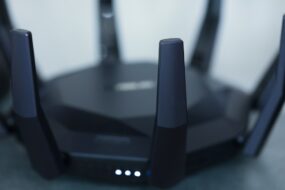
- Router Type: Opt for a dual-band or tri-band router. These provide better signal distribution and can handle more devices.
- Firmware Updates: Make sure to choose a router that receives regular updates. Old firmware can leave vulnerabilities that hackers exploit.
- Features: Look for routers that offer built-in security features like firewalls and antivirus support.
Many individuals think any router can suffice, but investing in one that’s equipped for security can save you lots of headaches later. Don’t skip this step; it’s foundational.
Setting Up Your Router
Once you have your router, it’s time for the secure home Wi-Fi network setup. Here’s a step-by-step guide:
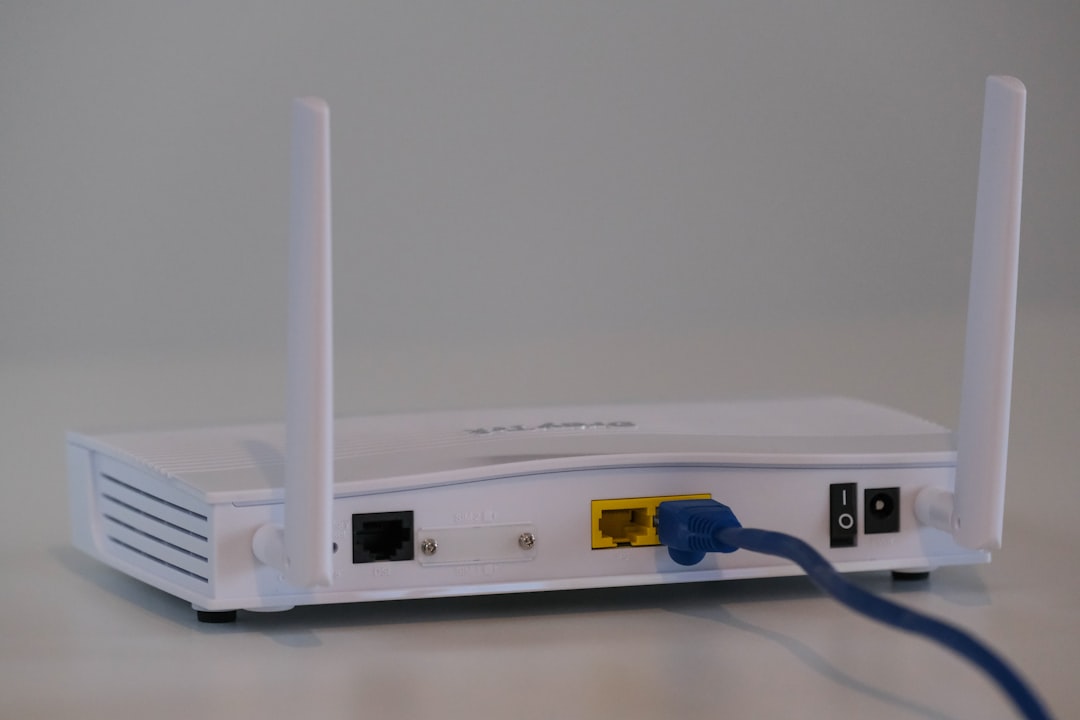
- Connect Your Router: Plug in your router according to the manufacturer’s instructions, and connect it to the internet via your modem.
- Access the Router Settings: Use a web browser to access your router’s settings page. You’ll typically find this by entering a specific IP address (like 192.168.1.1) in the browser’s address bar.
- Change the Default Username and Password: This is often overlooked. Default usernames and passwords are easily found online. Change them to something unique and strong; mix letters, numbers, and symbols.
Creating a Secure Wi-Fi Password
Next up: your Wi-Fi password. This is one of the most crucial aspects of your secure home Wi-Fi network setup. Here’s how to create a strong password:
- Aim for at least 12 characters.
- Include a mix of uppercase and lowercase letters, numbers, and special characters.
- Avoid easily guessable information like birthdays or common phrases.
In my experience, most people drop the ball here. They’ll create something simple that’s easy to remember, but too easy for someone else to guess. So take the time to create a password that’s both memorable for you and secure against prying eyes.
Choosing the Right Encryption Protocol
Encryption is the code that secures your Wi-Fi connection. If you want to protect your Wi-Fi, you must understand encryption protocols. Here’s a quick breakdown:
- WPA2: This is currently the most widely used and recommended protocol. It provides a solid level of security for home users.
- WPA3: This is newer and promises improved security, but not all devices support it yet.
- WEP: Avoid this protocol at all costs. It’s outdated and easy to crack.
When setting up your router, ensure it’s using WPA2 or WPA3. This step is crucial in your secure home Wi-Fi network setup and can make a world of difference in keeping your network safe from intruders.
Managing Connected Devices
As you start streaming, gaming, and browsing, you’ll inevitably connect multiple devices to your network. Here’s where most people stumble: they don’t manage these connections adequately. Keep your network secure by:
- Limiting Access: Only connect devices you own to your network. The more devices you have, the wider your security risk.
- Device Naming: Rename your devices with something unique. Instead of “John’s iPhone,” opt for “BlueBird-Mobile.” It adds a layer of anonymity.
- Regular Audits: Every month or so, check which devices are connected. If you see anything unfamiliar, that’s a red flag.
Managing connected devices can feel tedious, but it’s an essential part of home network security. Keeping a close eye ensures you spot any unauthorized access quickly.
Using Guest Networks
If you frequently have guests over, it might be tempting to let them connect to your main Wi-Fi. But this can pose risks. Instead, consider setting up a guest network. Here’s why it’s smart:
- Isolation: A guest network keeps visitors away from your primary network, protecting your devices and data.
- Limited Access: You can restrict the bandwidth or access certain services, ensuring your network remains fast and responsive.
Most modern routers allow you to create a guest network easily. It’s a small step that adds significant protection to your secure home Wi-Fi network setup.
Regularly Update Your Router’s Firmware
This one’s crucial but often forgotten. Keeping your router’s firmware up to date is one of the easiest ways to improve your home network security. Manufacturers release updates to fix vulnerabilities and improve performance, so don’t ignore them.
Check periodically or enable automatic updates if your router supports it. In my experience, neglecting this step is a common mistake that can expose your network to unnecessary risks.
Additional Wi-Fi Security Tips
Let’s wrap up with some extra Wi-Fi security tips that can help solidify your secure home Wi-Fi network setup:
- Disable Remote Management: Unless you specifically need it, turn off remote management features on your router to prevent unauthorized access.
- Enable Network Firewall: Most routers come with firewall features. Ensure they’re turned on for added security.
- MAC Address Filtering: Although it’s not foolproof, enabling this feature can help by allowing only specified devices to connect.
- Monitor Network Traffic: Use network monitoring tools to keep an eye on unusual activity, like unknown devices trying to connect.
Everyone thinks their home is secure, but taking these extra steps can make a dramatic difference. When it comes to Wi-Fi security, a little vigilance goes a long way.
Conclusion
A secure home Wi-Fi network setup is not just about speed; it’s about safeguarding your digital life. By following these steps—choosing the right equipment, setting strong passwords, managing connected devices, and keeping everything updated—you can create a fortress around your home network. Remember, the threats are real, but so are the solutions. Taking the time to invest in your home network security today will save you frustrations (and potential breaches) tomorrow.